THE MUSICAL MUSE
Blog dedicated to music education, practice tips, health
&
wellness, and geeking out.

My Studio Tech Setup (2020 edition)
My journey with studio technology really took off in 2012 with Eric Whitacre’s Virtual Choir 3.0: Water Night. Virtual Choir opened the doors to experimenting with multiple cameras, audio and video editing projects, and live streaming.
When we switched to online music lessons due to the pandemic, I simply dusted off some of the equipment and away we went. Since then, I have upgraded and added a few new items to my studio tech setup. Read on:
My journey with studio technology really took off in 2012 with Eric Whitacre’s Virtual Choir 3.0: Water Night. Virtual Choir opened the doors to experimenting with multiple cameras, audio and video editing projects, and live streaming.
When we switched to online music lessons due to the pandemic, I simply dusted off some of the equipment and away we went. Since then, I have upgraded and added a few new items to my studio tech setup. Read on:
Platform for Online Lessons
Initially, I offered online lessons via Facebook Messenger, Skype, and Zoom - whatever my students preferred. As time went on, we stuck with Zoom, as it seemed the most stable of the three. However, the sound quality drove me nuts.
Then, I discovered StreamYard. StreamYard is a web-based video streaming service. Basically, my adventures with the Music Ministry Hour live streams prepared me to organize live streamed recitals for my students.
The sound quality is just fabulous. Hear for yourself:
We switched to StreamYard for lessons in May. However, StreamYard did have its limitations as a piano lesson platform. In the end, I decided to go back to Zoom in the fall for online music lessons, utilizing the full screen views, Share Screen tools and Breakout Rooms. I continue to use StreamYard for live streaming recitals, pre-recording studio performances, and content creation (but that’s a post for another day).
Tech Setup for Online & In Person Lessons

First Week of Lessons. Photo by R-M Arca.
I use my studio Asus desktop exclusively for teaching. It is connected to the Internet via ethernet cable. One computer monitor is the dedicated Zoom monitor, while the second screen is for everything else - typing up homework, sharing videos, etc. I toggle between three webcams as needed:
Pedal Cam: Logitech C270 HD Webcam ($39.99 CAD & up)
Profile Cam: Logitech C910 HD Pro Webcam (discontinued by manufacturer)
Overhead Cam: Logitech C920 HD Pro Webcam ($140 CAD & up)
The Overhead Cam is attached to a microphone stand ($25.99 CAD & up on Amazon.ca and Long & McQuade) via a camera Digital Recorder Adapter ($15.99 CAD & up on Amazon.ca and Long & McQuade). The Pedal Cam is attached to an old mini-tripod with gaffer tape, while the Profile Cam sits atop the dedicated Zoom monitor.
I initially used my Zoom H2N Handy Recorder ($229.99 CAD, available on Amazon.ca and Long & McQuade) as an input mic and Sennheiser HD 280 Pro Headphones ($129.00 CAD & up on Amazon.ca and Long & McQuade). Now that I’m dedicating more time to content creation and the Practice Time with Ms. Rhona live streams, I’ve reallocated equipment and now use my Turtle Beach Gaming P11 Headset ($39.99 CAD & up) for online teaching.
Over the summer, I picked up a 10” Ring Light with Tripod and Smartphone Holder ($39.99 CAD & up), which has been working quite nicely.
For in-person lessons, I utilize the Overhead Camera via StreamYard to check my students’ fingering. The dedicated Zoom monitor is used to display the Overhead Camera view, while the second monitor is used to type up assignments.
Tech Setup for Live streaming and Content Creation
Initially, I used my desktop, Zoom H2N Handy Recorder and Sennheiser headphones for live streaming and content creation. It worked quite well, but soon, I added my Asus Tuf Gaming laptop to the mix so that I could offer two simultaneous camera views during live streams and videos, as well as toggle between four cameras. The laptop also connects to the Internet via Ethernet cable for a more stable connection.
At the beginning of the school year, I picked up a Mackie ProFX6v3 Mixer Board for $214.99 CAD from Long & McQuade. It’s also available on Amazon.ca. That way, I could attach my old Shure Wireless Headset Mic ($50.99 CAD & up from Amazon.ca and Long & McQuade) and AT4040 Condenser Microphone ($449.00 CAD & up at Amazon.ca and Long & McQuade). More importantly, I could monitor my sound via my Sennheisers in real time as StreamYard lacks that capability.

My live streaming setup one week.
Depending upon the video project, I utilize digital cameras in addition to the webcams, along with my Rode VideoMic GO Lightweight On-Camera Microphone - VMGO ($139.99 CAD on Best Buy and Amazon). I plan to add the H2N Zoom Recorder to the mobile gear kit.
Check out my Studio Tech vlog below for a tour:
What are your favourite studio tech tools? Let me know in the Comments.
***
DISCLAIMER: This post contains Amazon affiliate and StreamYard referral links. If you click on a product link and make a purchase the Studio will receive a small commission. Thank you for supporting the Studio’s YouTube channel and blog
Using Multiple Cameras in a Music Lesson Demonstration
After reading "On Teaching Piano with Multiple Cameras", one of my readers had mused how wonderful it would be to see a demonstration of using multiple cameras in a music lesson. My student Dylan and I were happy to oblige.
After reading "On Teaching Piano with Multiple Cameras", one of my readers had mused how wonderful it would be to see a demonstration of using multiple cameras in a music lesson. My student Dylan and I were happy to oblige.
Here we are working on a short chord progression from U2's "Stuck in a Moment". I used the three claps at the beginning to synchronize the videos (à la Eric Whitacre's Virtual Choir).
We used the following cameras for this demonstration:
POV Camera on Dylan's head (Top Left): GoPro Hero 2
Profile Camera on the Studio Desk (Top Right): Microsoft HD LifeCam 3000
Pedal Camera (Bottom Right): Canon PowerShot 5S IS (I can't bring myself to retire it completely because it's still a good camera)
Overhead Camera (Bottom Left): Logitech HD Pro Webcam C910
I took a photographer friend's advice and turned off the auto-focus on the two webcams. Another thing I do is try to minimize the number of background programs running on the computer when recording video.
The profile view is essential for checking posture and hand position. The overhead view gives you the musician's peripheral of the keyboard geography. The pedal view is essential with students who are having issues with timing their pedal changes. As for the POV camera - isn't is just fun to see how another musician sees when they play? It's also good for checking where they are focusing.
I will probably swap the positions for the pedal and profile camera.
Now, when a student working on something new, I can show them various perspectives that they can review at their leisure at home. Or perhaps they'd like to show off a newly polished piece to their relatives across the country.
Students, "Record & Review" has never been so easy to do at home. Use any of your portable devices, such as a smart phone, iPod, tablet, netbook, laptop, camera. You can place them at various positions as we have here.
Find out more about how to incorporate webcams into your studio here.
* Special thanks to my student Dylan and his family for granting permission to record Dylan for this demo. *

Using Webcams in Music Lessons
Last year, I purchased an HD webcam for my music studio. My students, their parents and I have enjoyed how easy it is to take a quick video clip or photo of either a hand position or drilling a troublespot in their music.
Last year, I purchased an HD webcam for my music studio. My students, their parents and I have enjoyed how easy it is to take a quick video clip or photo of either a hand position or drilling a troublespot in their music. They get to review it as many times as they need to at home as an unlisted Youtube video.

Computer assisted instruction aids music practice. Photo by R-M Arca
Some of my piano parents really like the overhead camera as it gives them the same view that pianists see when they look at their hands.
This year, we are moving full-steam ahead with computer assisted instruction. Thanks to Memory Express and Best Buy, I was able to take advantage of their huge sale on webcams.
Webcam #2 is positioned to give that all important profile view. It's great for checking posture and ergonomic movement.
.jpg)
Technology in music can be as easy as a $30 HD webcam. Photo by R-M Arca.
It took a while for some of today's students to find Webcam #3. I have a few students who need the pedal view.
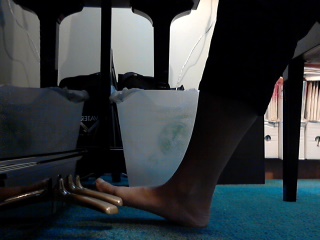
Having multiple camera views for computer assisted music lessons is ideal. Photo by R-M Arca.
My beginner piano students were pretty eager to test how well my computer could handle recording from two cameras simultaneously. It turned out all right. I'll have to fiddle around with the audio settings a bit, but at least my students and I are having fun with these toys as we explore the exciting world of music.Once we get a better handle on things, Skype piano coaching can't be too far away.
Social Media Links
archives
- #YYCArts 32
- #YYCEvents 39
- Collaborative Music 25
- Community 11
- Composing & Arranging 6
- Entertainment 139
- Entrepreneurship 53
- Freebies 3
- Gardening 1
- Geeking Out 65
- Health & Wellness 120
- Improvisation 25
- Interviews 28
- Learning Music 188
- Martial Arts 13
- Memorization 7
- Music 230
- Music Careers 9
- Music Education 196
- Music Examinations 7
- Music Exploration 55
- Music Gigs 14
- Music Lessons 6
- Music Performance 32
- Music Theory 13
- Musical Instruments 12
- Musician Health 19
- Pets 57
- Piano Technique 12
- Practicing Music 120
- Productivity 20
- Professional Development 11
- Recommendations & Reviews 93
- Recreation 71
- Social Media 6
- Spirituality 10
- Studio Management 33
- Studio Technology 50
- Teaching Music 146
FOLLOW THE STUDIO on Instagram

Affiliate Links
As a Sheetmusicplus and CD Japan affiliate, I earn from qualifying purchases. The earnings help fund the Studio’s blog and YouTube channels. Your support is greatly appreciated.


FOLLOW Budo no Tabi on Instagram